In this video, we are going to have a look at how to setup Home-Assistant companion app on your NSPanel Pro. This allows us to manage our Home Assistant instances all from the Panel. You will also learn how to side load .apk files, so if Home-Assistant isn't your thing you can also use other apps.
Prerequisites
- Download Android platform tools 🔗 Android platform-tools
- Download ultra-small-launcher 🔗 ultra-small-launcher.apk
- Download Xposed Installer 🔗 Xposed Installer
- Download Xposed Framework 🔗 Xposed Framework
- Download AnyWebView 1.2 🔗 AnyWebView
- Download WebViewUpdate 🔗 WebView Update
- Download Automagic (
Automagic is not maintained anymore) 🔗 Download Automagic - Download XML File 🔗 Automagic XML File
- Download Home-Assistant APK
nodpi🔗 Home-Assistant download page
- 🔗 You need first to enable ADB access on your NS Panel Pro - DO NOT UPGRADE DEVICE
- 🔗 For more simplicity, download and store ALL files into the Android-platform-tools folder
Install eWelink app on tablet or smartphone (Click on the icon store depending of your your device to get redirected)


How to enable ADB on Panel
Connect to your panel by scanning the QR code & go to device settings
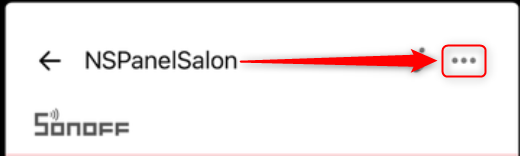
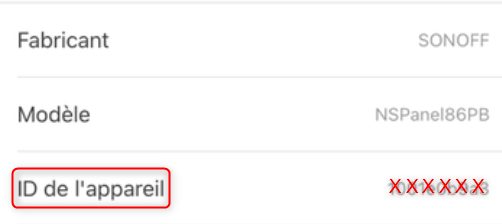
Scroll down to (Mobile ID - ID de l'appareil) and tap on it 10x (dont tap on numbers)
Connect to Panel
adb connect 192.168.x.xxx
Disconnect from Panel
adb disconnect 192.168.x.xxx
Disconnect from ALL Panels
adb disconnect
Install Ultra Small Launcher
adb install ultra-small-launcher.apk
Simulate a Home key press (This command is your friend)
adb shell input keyevent 3
Install Xposed Installer
adb install de.robv.android.xposed.installer_3.1.5-43_minAPI15(nodpi)_apkmirror.com.apk
Push .tar file to panel
adb push xposed-v90-sdk27-arm64-beta3.tar /sdcard/Download/
Open shell in ADB
adb shell
Switch to root
su
Make filestyem writeable
mount -o rw,remount /system
Navigate to the directory where you uploaded Xposed framework
cd /sdcard/Download/
Extract the xposed-v90-sdk27-arm64-beta3.tar file
tar -xvf xposed-v90-sdk27-arm64-beta3.tar
Change into the new directory
cd /sdcard/Download/xposed-v90-sdk27-arm64-beta3/
Make the installer script executable
chmod a+x /sdcard/Download/xposed-v90-sdk27-arm64-beta3/META-INF/com/google/android/flash-script.sh
Run Xposed framework installer script
sh /sdcard/Download/xposed-v90-sdk27-arm64-beta3/META-INF/com/google/android/flash-script.sh
Xposed Framework is now installed, but not activated. Reboot your device. It will take longer than usual to boot this time.
Once the panel has rebooted use adb shell input keyevent 3 to open the launcher again, then open the Xposed app, gloss over the warning and make sure it is activated
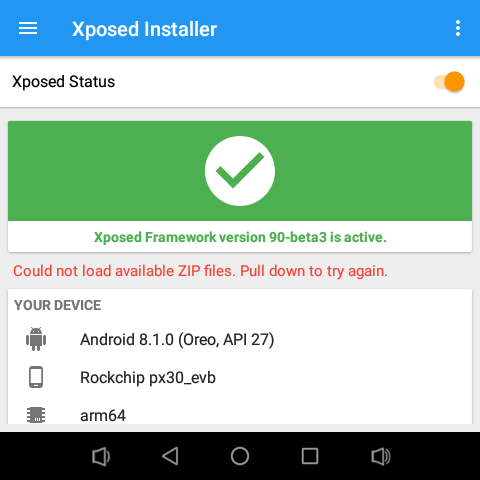
If it’s orange and says it’s not activated, another reboot might solve it
Install AnyWebView
adb install AnyWebView.apk
Open Xposed again, open Modules from the left menu and activate AnyWebView (check the box).
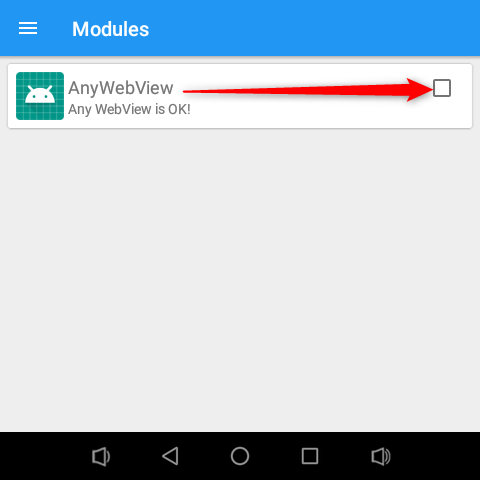
Reboot your device.
Install WebView Update
adb install "Android System WebView_vxxx.x.xxx.x_apkpure.com.apk"
Update WebView
adb install -r "Android System WebView_vxxx.x.xxx.x_apkpure.com.apk"
Wait a while because it’s a large install.
Go to Settings -> System -> About tablet -> Build Number and tap the “Build Number” option 7 times to enable developer options.
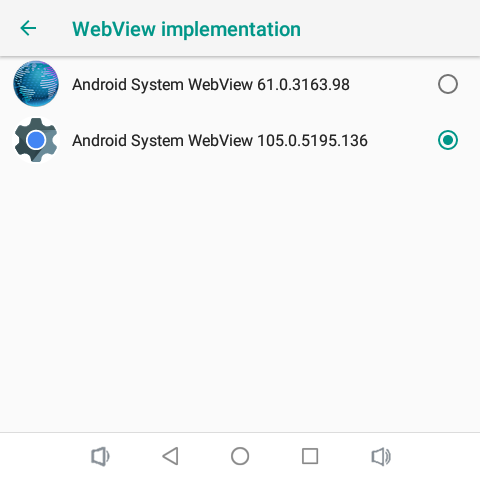
In Developer options, navigate to WebView Implementation and choose your WebView instead of the outdated “Android System WebView 61.x”
Download XML File (right click save link as - or copy and paste into a .txt and save as flow_Proximity_turn_screen_on.xml)
Install Automagic
adb install Automagic_1_38_0.apk
Push XML file to panel
adb push flow_Proximity_turn_screen_on.xml /sdcard/Download/flow_Proximity_turn_screen_on.xml
Configure Automagic app & import XML file:
Install Home-Assistant APK
adb install io.homeassistant.companion.android_xxxx.xx...apk
Update Home-Assistant APK
adb install -r io.homeassistant.companion.android_xxxx.xx...apk